





Search another article?
Configure SGBox Restore Application
This article explains how to configure SGBox App Restore in order to restore your Raw log data, Raw logs signatures, Database and Settings.
Requirements:
- Share the backup data folder with SGBox using SMB, NFS, or SSH protocols.
Go under SCM > Applications > Backup
Select the application to use and proceed with the Download and install.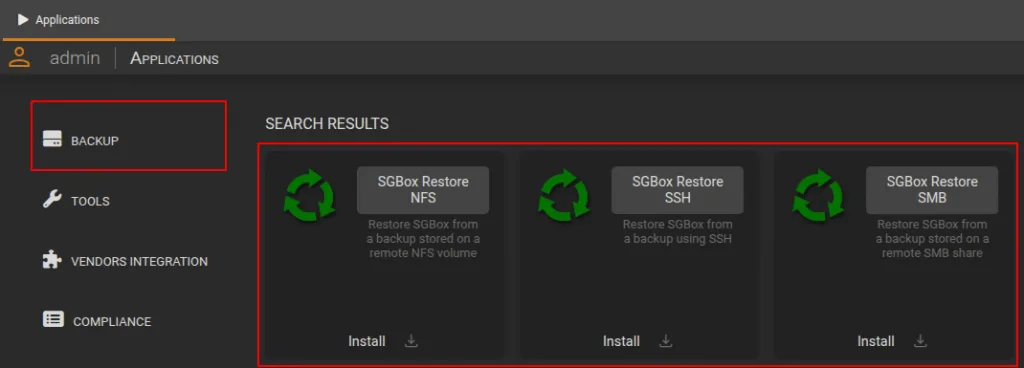 Note: The choice of the restore application depends on which application was previously used for the backup. For example, if you used “SGBox Backup SMB” to back up your data, you must then use the “SGBox Restore SMB” application for the restore process.
After installing the Restore App, configure the required settings and click OK to apply changes.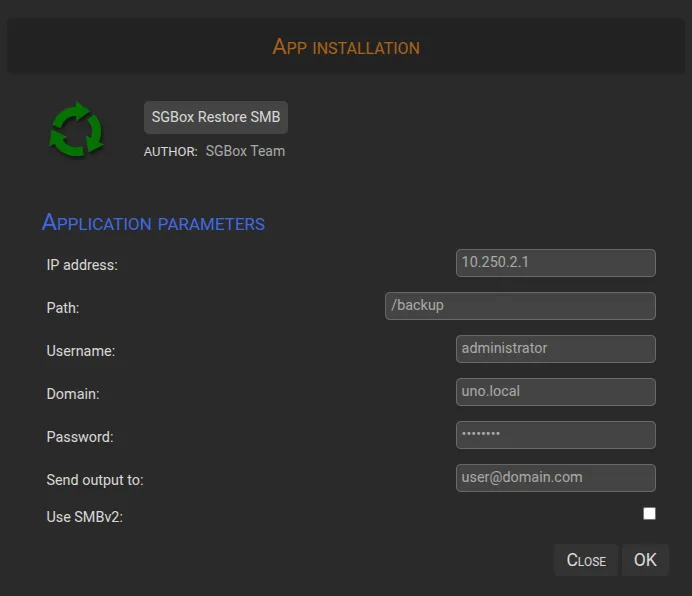
To start the restore application, click the RUN button.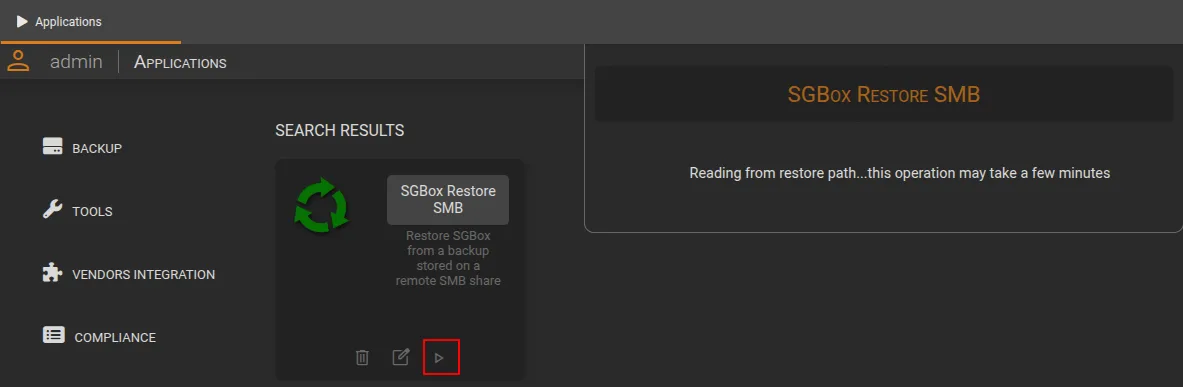 Note: a pop-up will appear with the message ‘Reading from restore path… this operation may take a few minutes‘ Please wait until the option to proceed becomes available.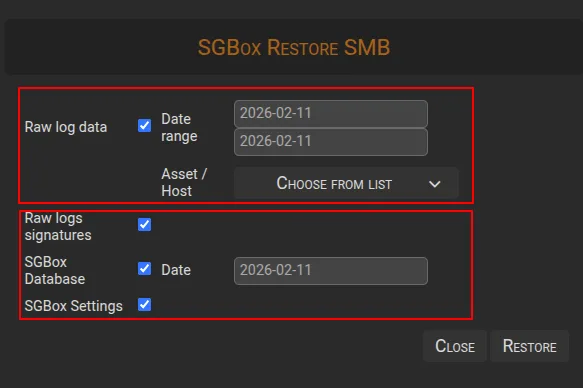
Restore Options
- Raw log data Allows you to restore encrypted raw logs. You must also specify a start date and the host list you wish to restore.
- Raw logs signatures Allows you to restore the signatures associated with encrypted raw logs.
- SGBox Database Allows you to restore databases, configurations, and settings related to the databases within SGBox. You must specify the start date for the restore. Note: This option lets you choose which specific date’s database to import; it is recommended to use the most recent date to ensure all the latest data and changes are recovered.
- SGBox Settings Allows you to restore the general settings and specific lists configured within SGBox.
Click the Restore button to start the activity and wait until it is completed.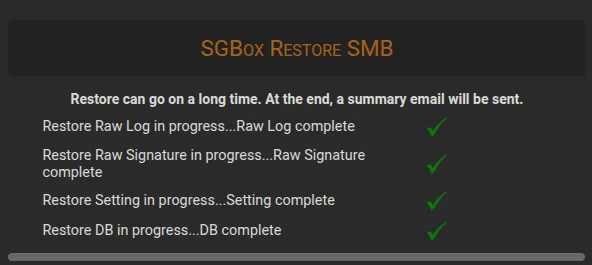
To verify the success of the operation, ensure that the data has been correctly updated in your SGBox. Additionally, you can review the restore status in the notification email with the subject ‘SGBox Restore‘ which is automatically sent after every restore activity.