


Search another article?
API Key configuration
This articles explain how to configure SGBox to interact with Telegram API in order to send alert messages when a specific event occur.
Requirements:
- SGBox version 4.2.4 with the LM and LCE modules.
- A Telegram BOT.
There are many tutorial about how to configure a Telegram BOT. We choose @BotFather for our example.
First you need to create your bot and obtain your TOKEN:
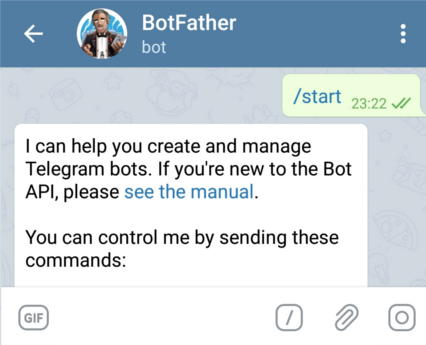
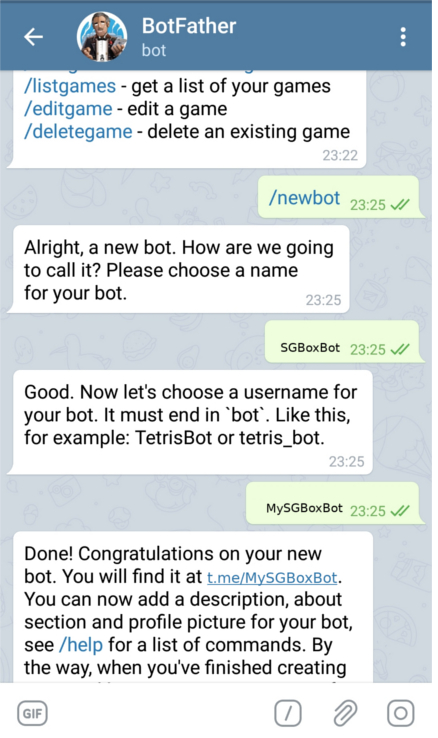
A token is something like: 1148120703:AbIUGpERusdQDEEag_EL1KDtynRB9sIhbj1.
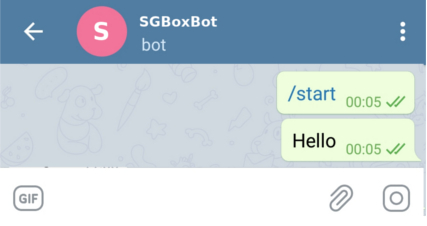
You need also a the chat_id, so: start and say “Hello” to your bot, than retrieve the chat id:
From your browser go to:https://api.telegram.org/bot1148120703:AbIUGpERusdQDEEag_EL1KDtynRB9sIhbj1/getupdates
Find the ID in the response:
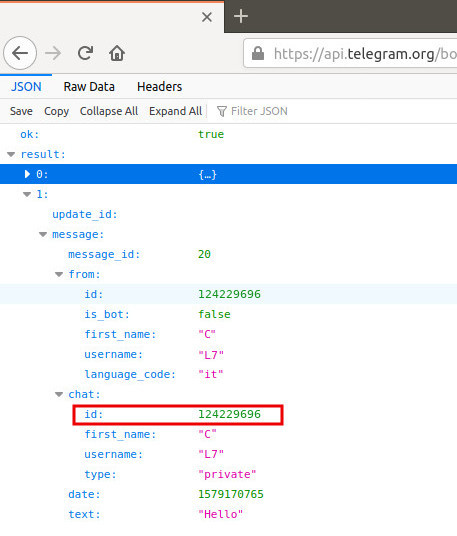
id: 124229696
API Key configuration
Log in to SGBox and download Telegram application:
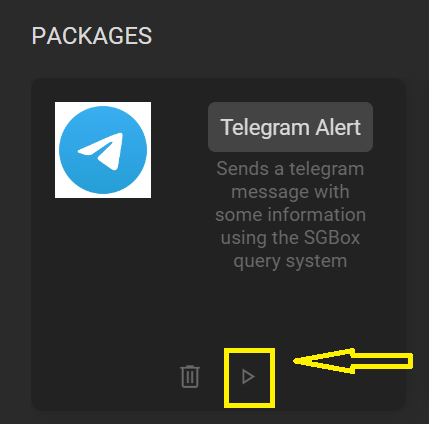
From SCM > Application > SOAR PREMIUM download and install Telegram application.

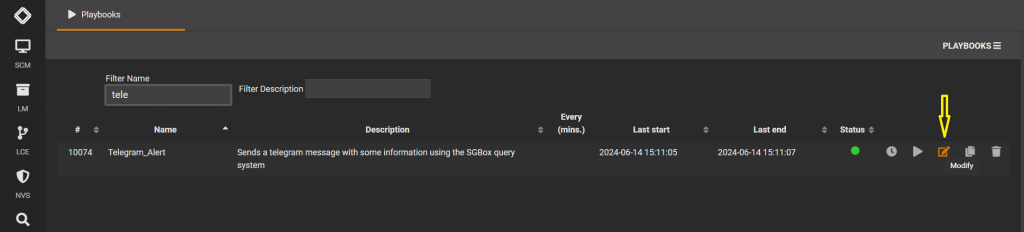
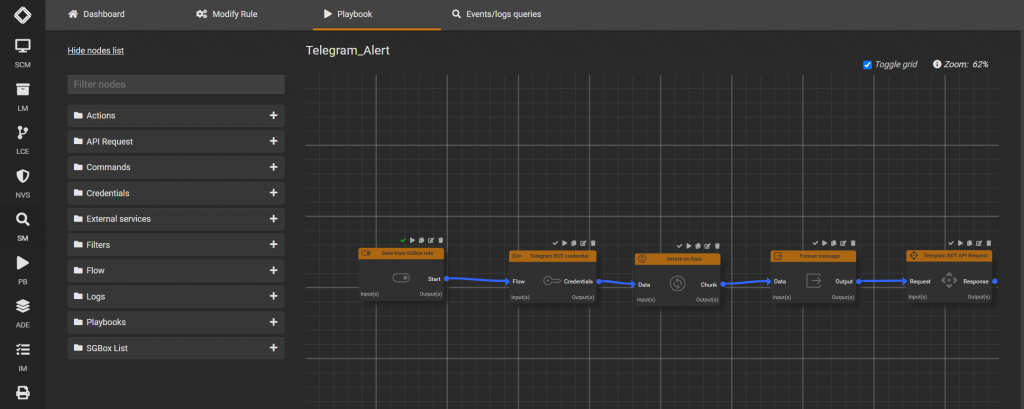
Go to PB > Playbooks > Telegram_Alert

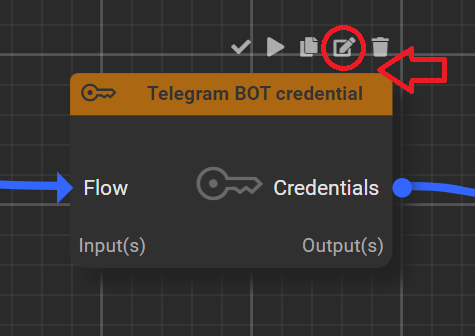
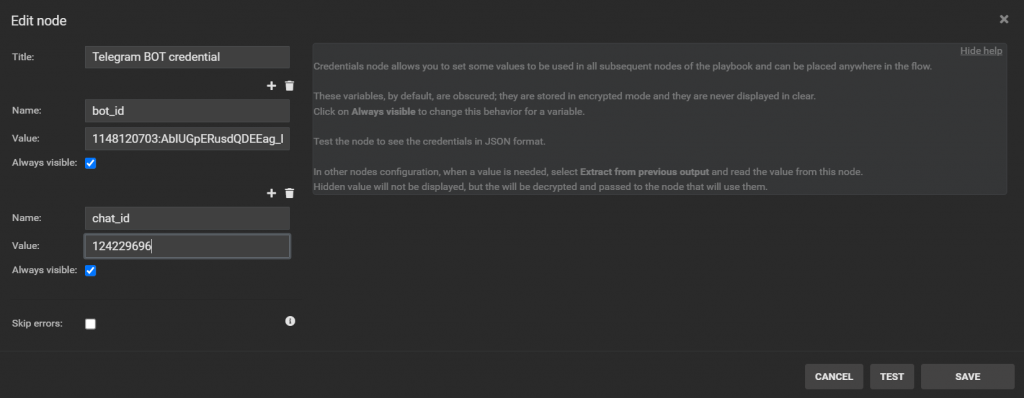
Edit Telegram BOT credential

Name fileld: bot_id ( do not change ), ( we can find in the first part of our guide the credentials that need to be entered )
Value: 1148120703:AbIUGpERusdQDEEag_EL1KDtynRB9sIhbj1Name fileld: chat_id ( do not change ), ( we can find in the first part of our guide the credentials that need to be entered )
Value: 124229696
Also when we finisched to insert our credential, we can test all and save, close the window

SGBox SOAR Usage
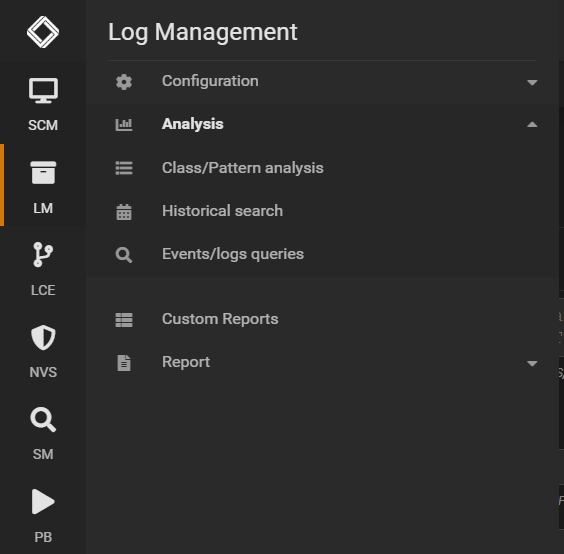
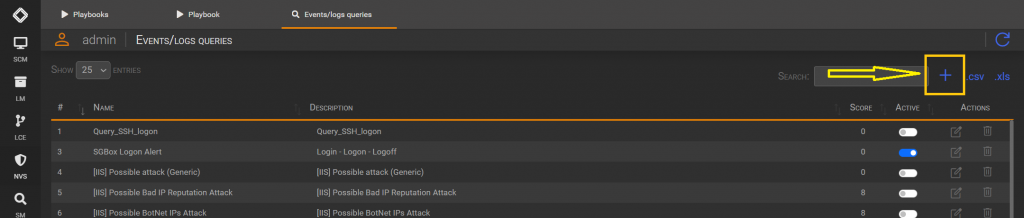
Afetr we need to create an Event/logs queries to connect with the Telegram_Alert’s Playbook, we have to go to LM > Analysis > Event/logs queries

Create new Queries with the blue button on the right

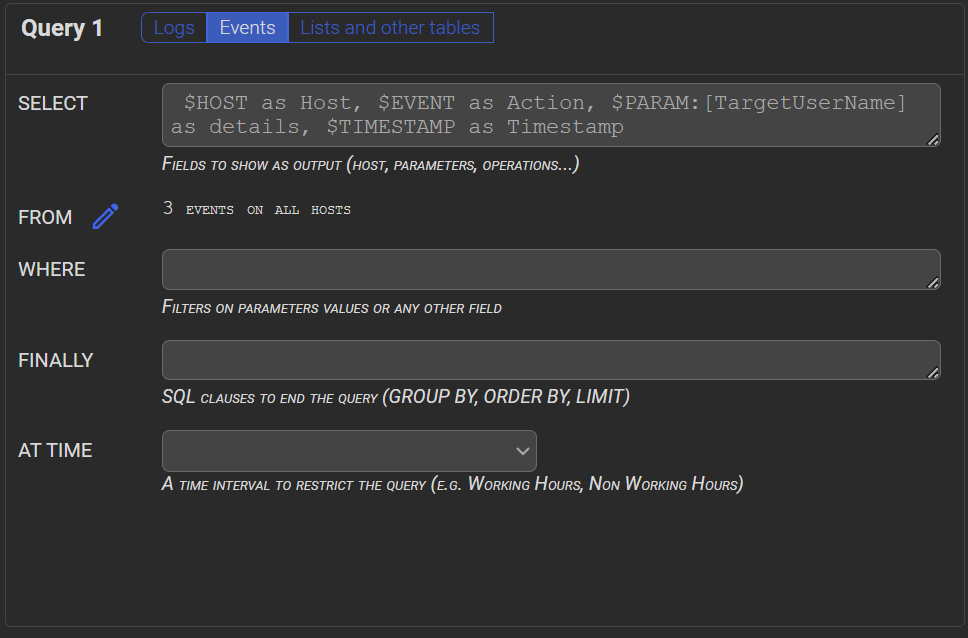
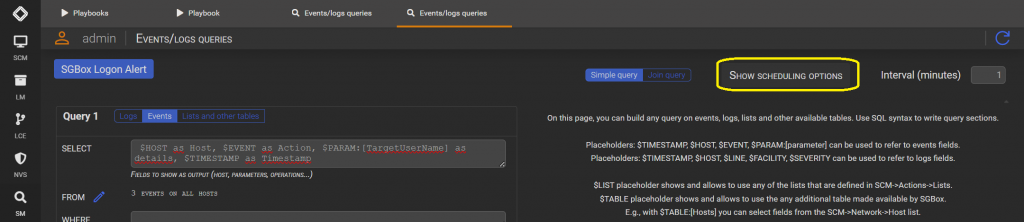
in the select we put the parameters that we are interested in seeing in the future message that will arrive on our Telegram.
On this example we write:
$HOST as Host, $EVENT as Action, $PARAM:[TargetUserName] as details, $TIMESTAMP as Timestamp

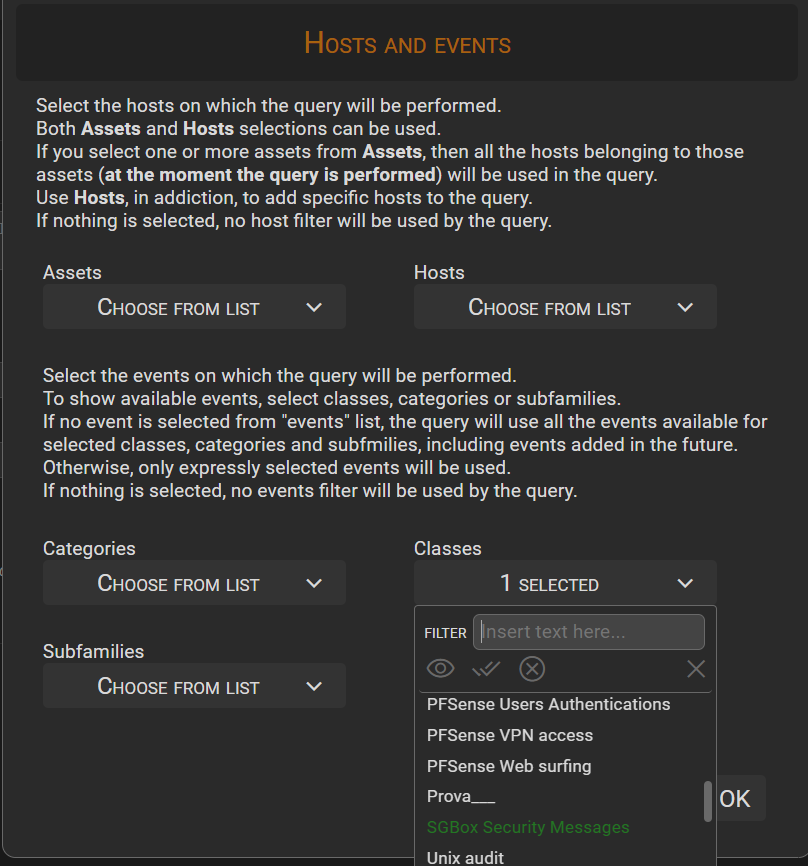
Now set your “FROM” ( The class or classes )

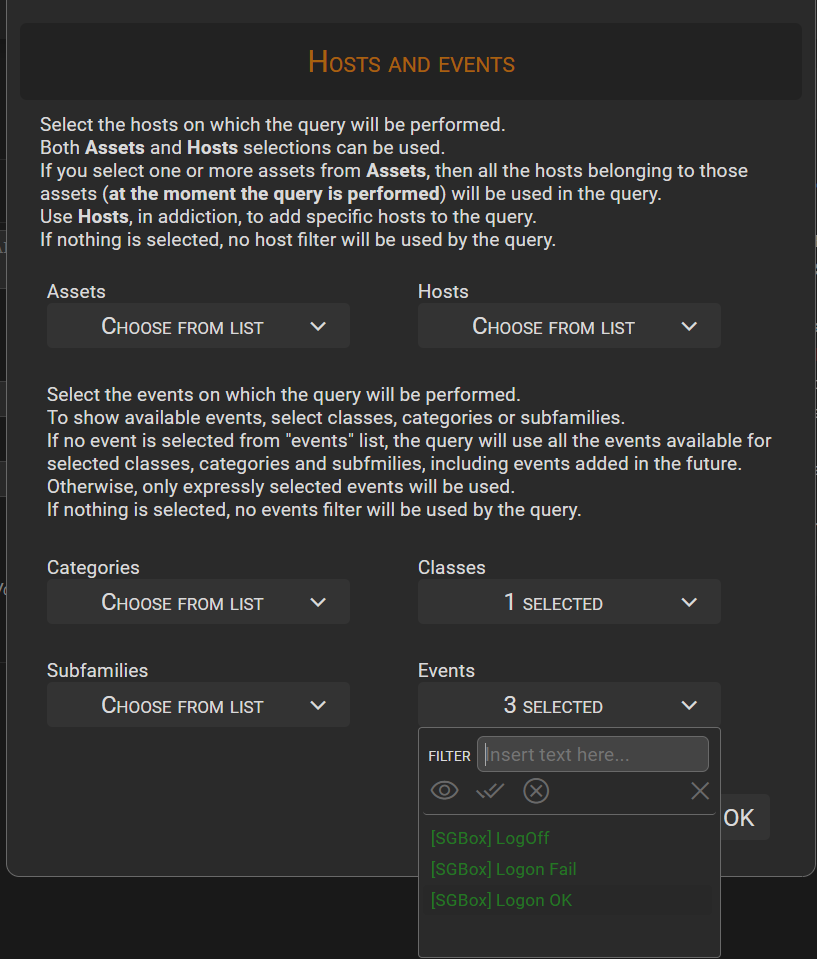
Now i choose the event or events:

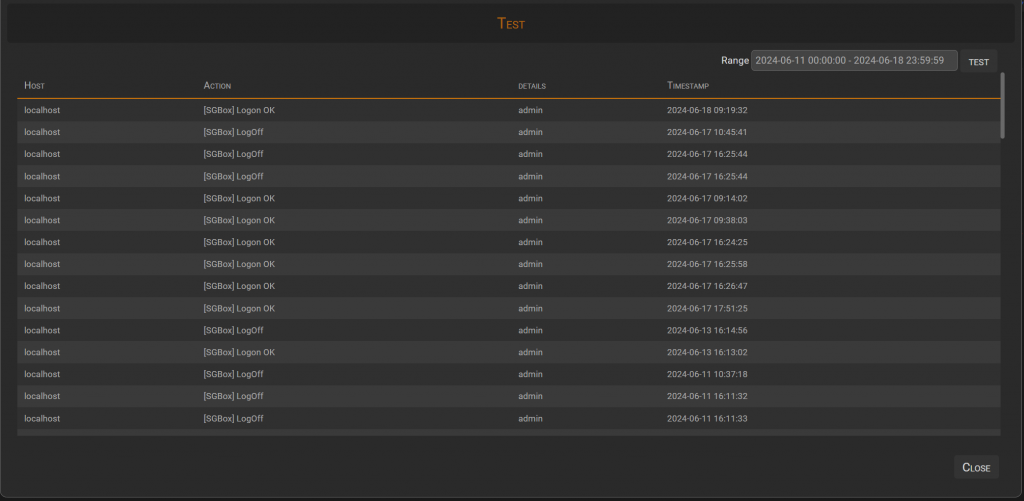
Important: we need to verify the proper functioning of our query, NB: before clicking the test button, chech the range time

Now press the button = ” Show Scheduling Options “

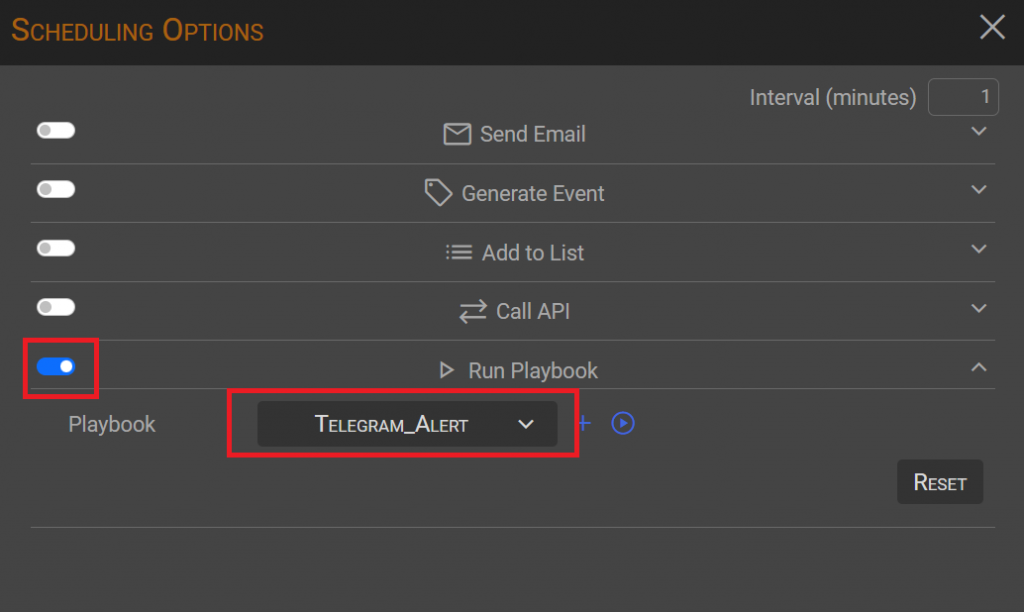
put the tick on the flag ” Run Playbook ” and choose our Telegram alert

back to the playbook section

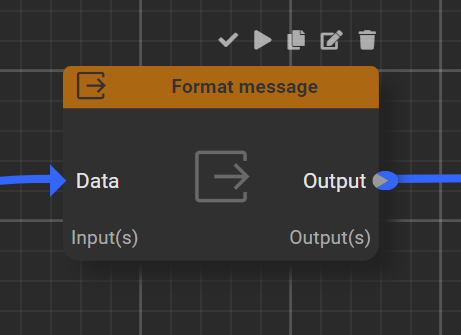
go to format message

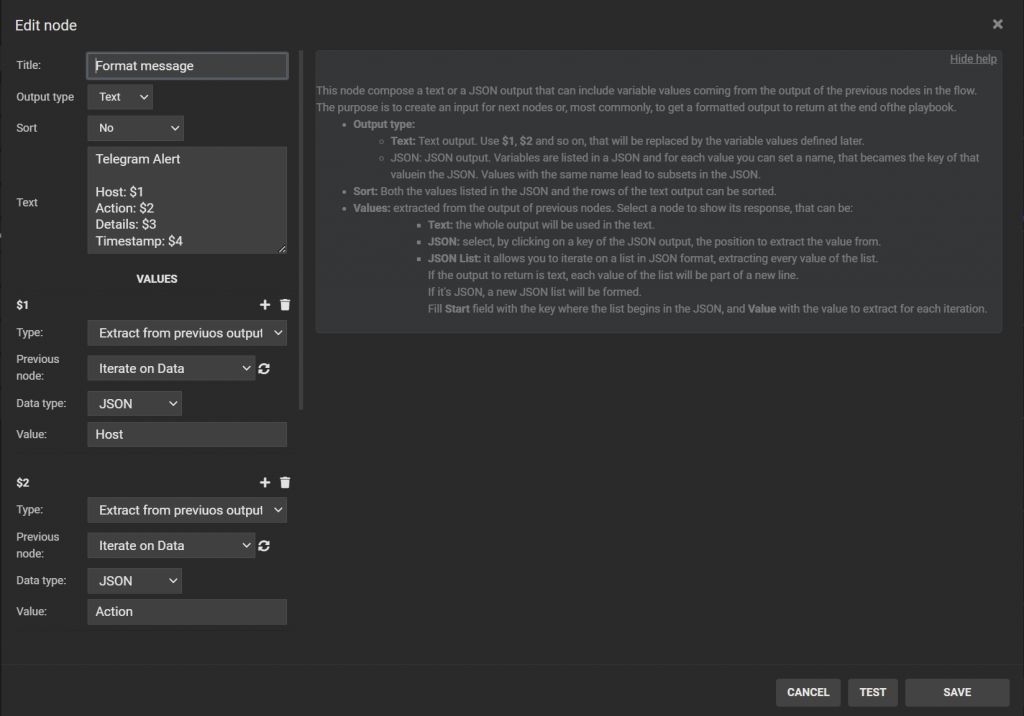
same passage as before click on the edit button, in the section text we write the telegrammessage that will come to us once we set :
Telegram Alert
Host: $1
Action: $2
Details: $3
Timestamp: $4
the values refer to the query we made earlier, to add parameters in the text message click on plus or trash to delete
Save all with the button on the right “save”

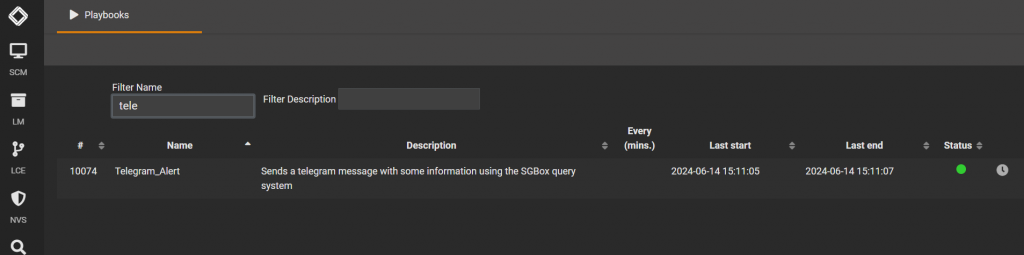
Back to Playbook section, search Telegram_Alert and check the status of the playbook on the right side, if it’s green playbook will alert you whenever the event we have indicated will happen

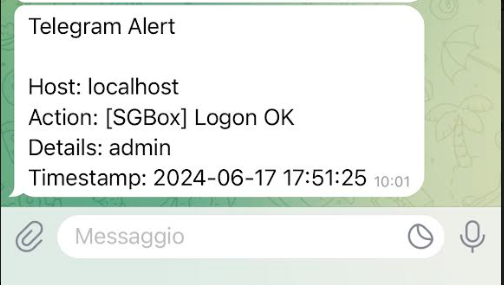
If it’s all correctly, after the login telegram alert me that someone has done a LogonOK