


Search another article?
Extend the entire disk size
This article explains how to expand the SGBox disk capacity. With versions 5 and 6, it is possible to extend the full disk, not only the data partition.
In order to extend the disk.
Requirements:
- SGBox version 5 or 6 is required.
- You need to extend SGBox disk from your hypervisor.
- ⚠️ It may be necessary to reboot the machine after expansion on the hypervisor
Connect to the SGBox appliance via SSH (using Putty,Terminal or console), specifying the user CLI and the password you saved for it.
Default password is: User: cli
Password: CL1changePW
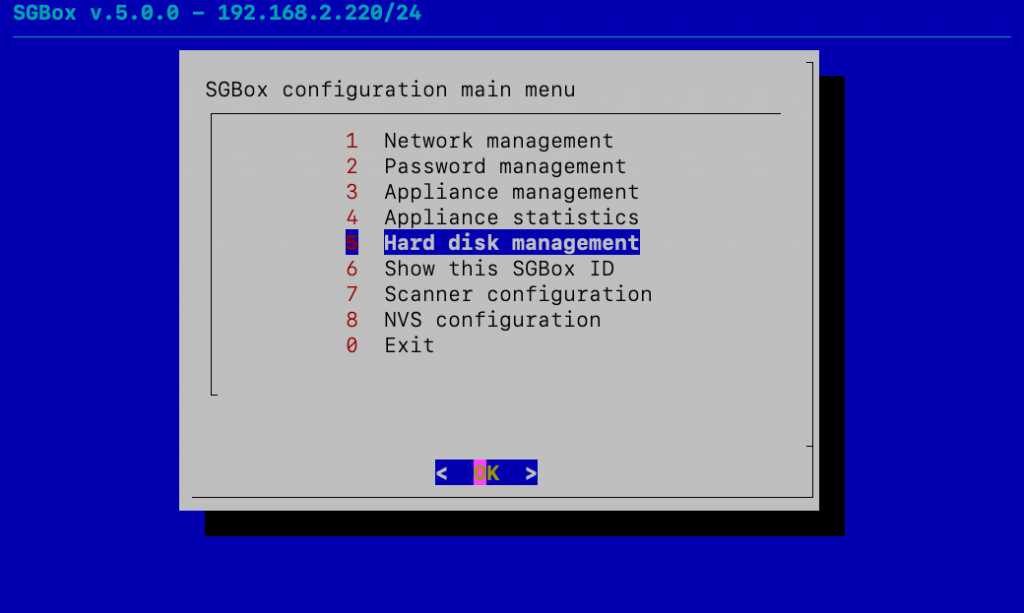
Select Hard disk management
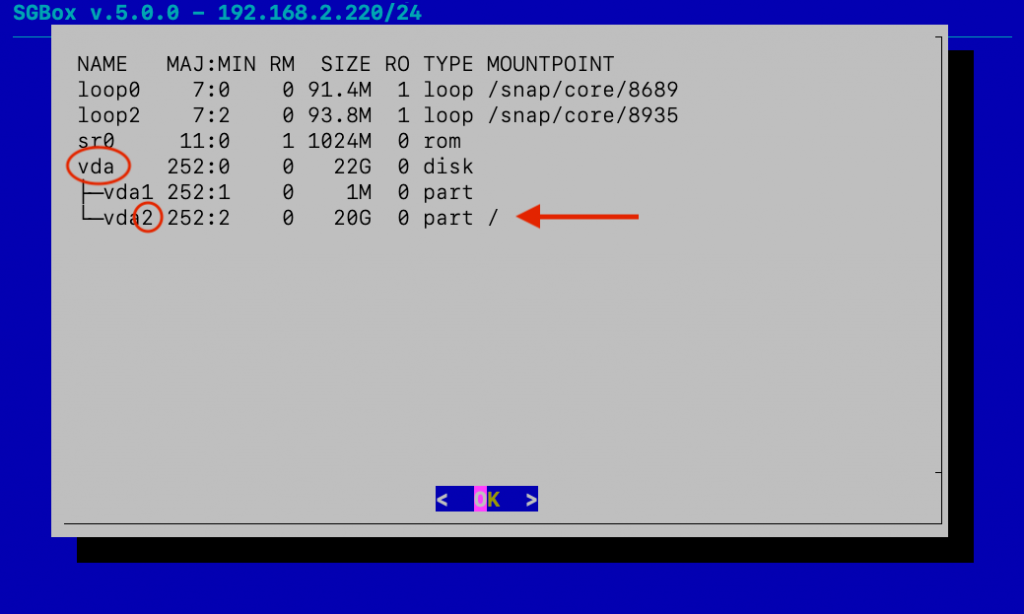
Select Show current configuration in order to see your disk.
In our case, we see that:
- The hard disk is called: sda.
- The partition with root mounted is the number: 2.
- The SGBox partition is: 20G.
If the disk size is not increased maybe you need to restart you virtual machine! (also done after expansion by CLI interface, Appliance Management -> Reboot)
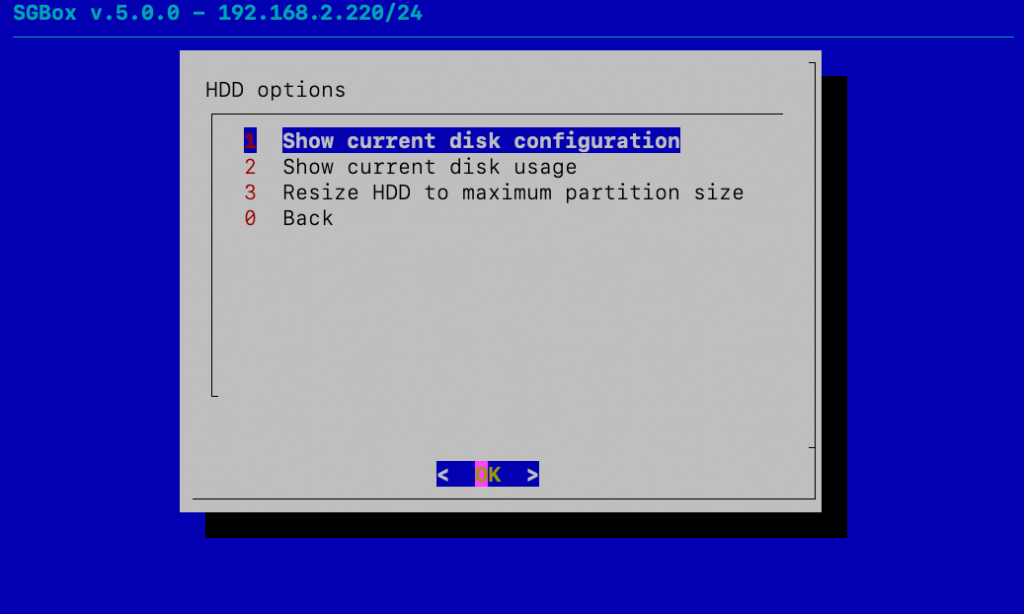
Select Resize HDD to maximum partition size.
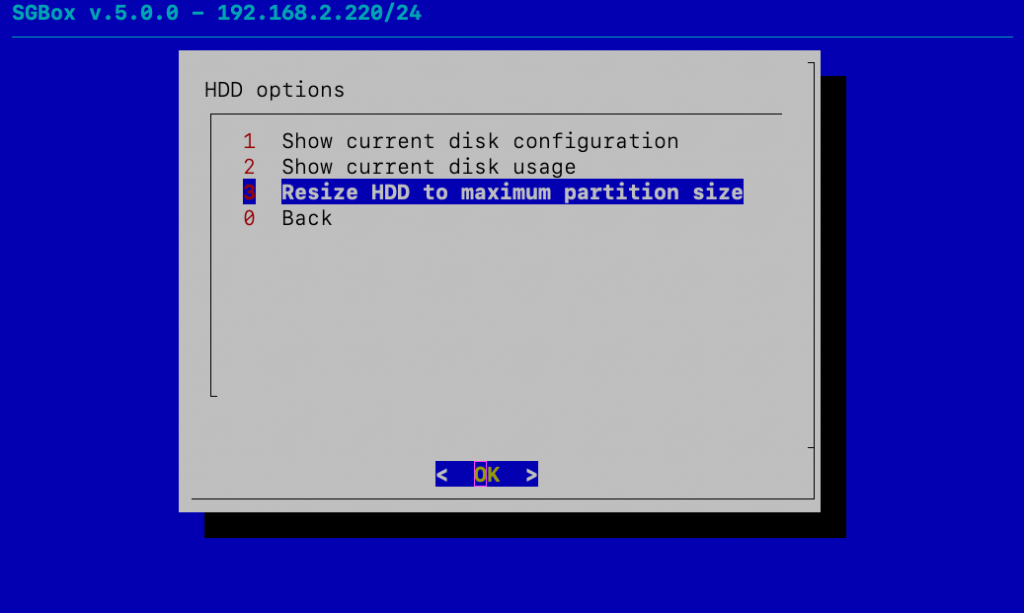
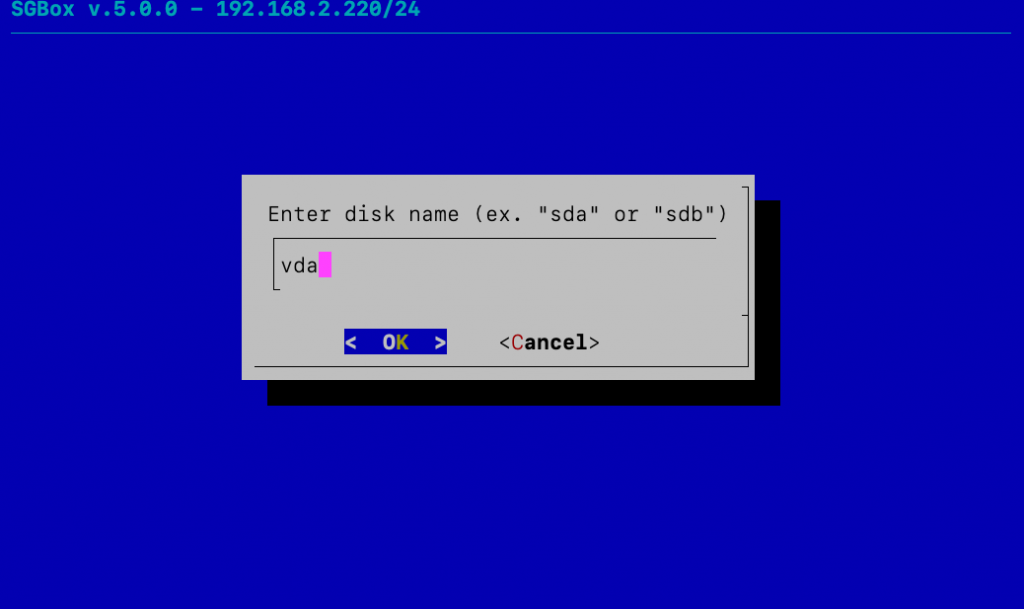
Enter your hard disk name, in our case: sda.
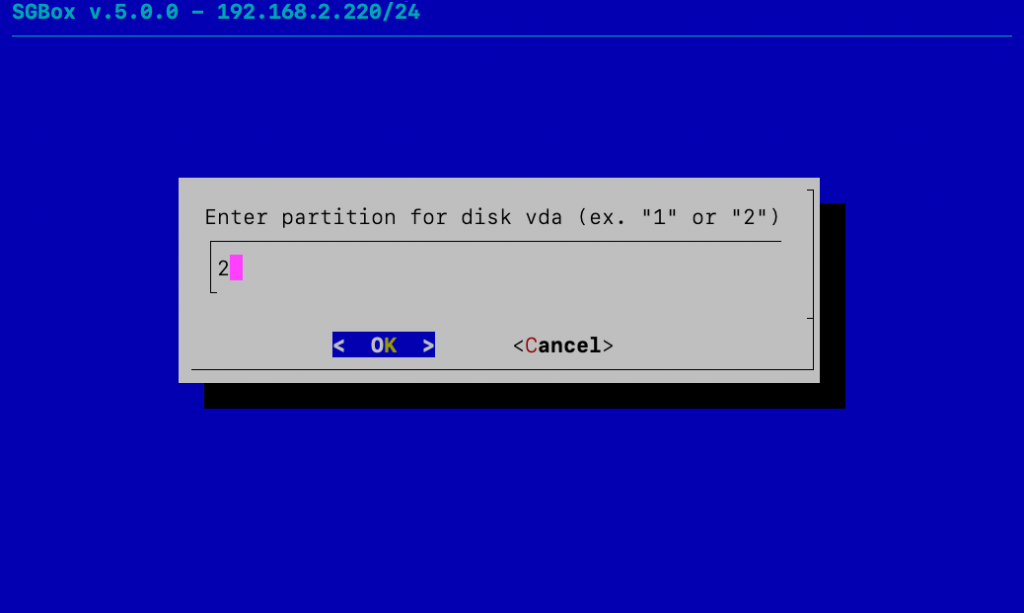
Enter the partition number, in our case: 2.
Details has been shown during the partitioning…
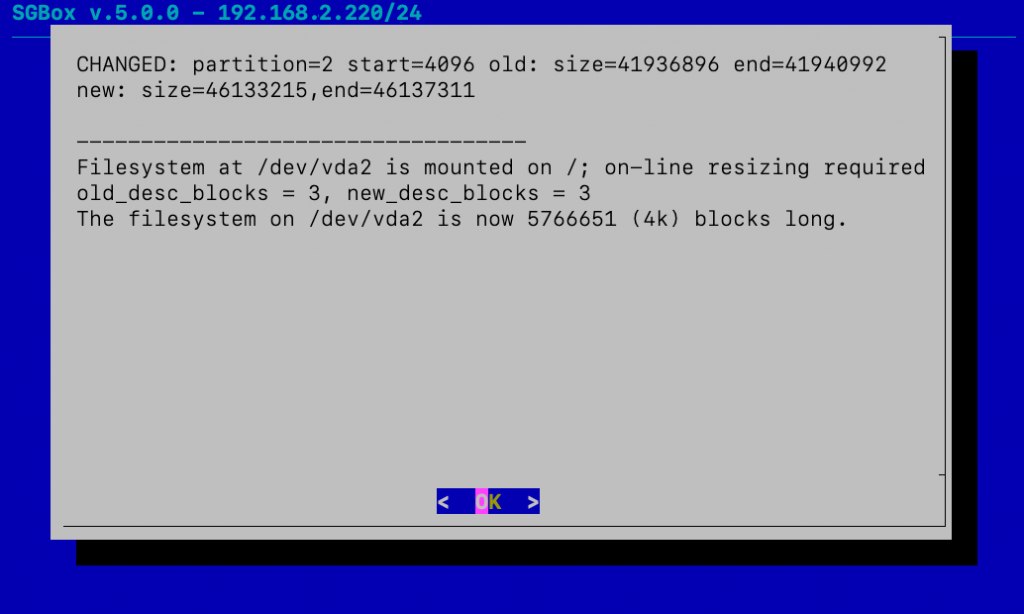
The hard disk is now successfully extended.
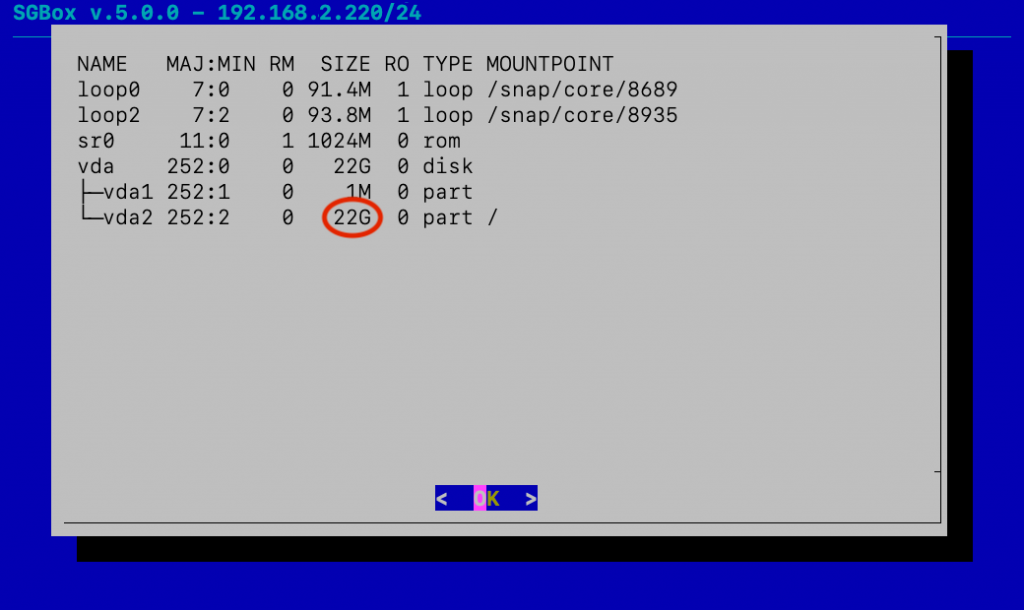
- New partition size is: 22G.