



Search another article?
Threat Intelligence Queries
This article explain how to create a Threat Intelligence Query, that allows you to obtain simply the process of an Events Query to search a value in the list and take an action. In this way, queries can be used like LCE rules or sensors. Can be scheduled to run every minute on a time interval, performing actions when they found results. The available actions are Send Email, Generate Event, Add a parameter to a list.
Requirements:
- SGBox version 5.3.1
Configure Threat Intelligence Queries
Go under LCE > Threat intelligence queries, Click on + Add new custom query A guided interface is available to create specific queries for searching parameters within any list.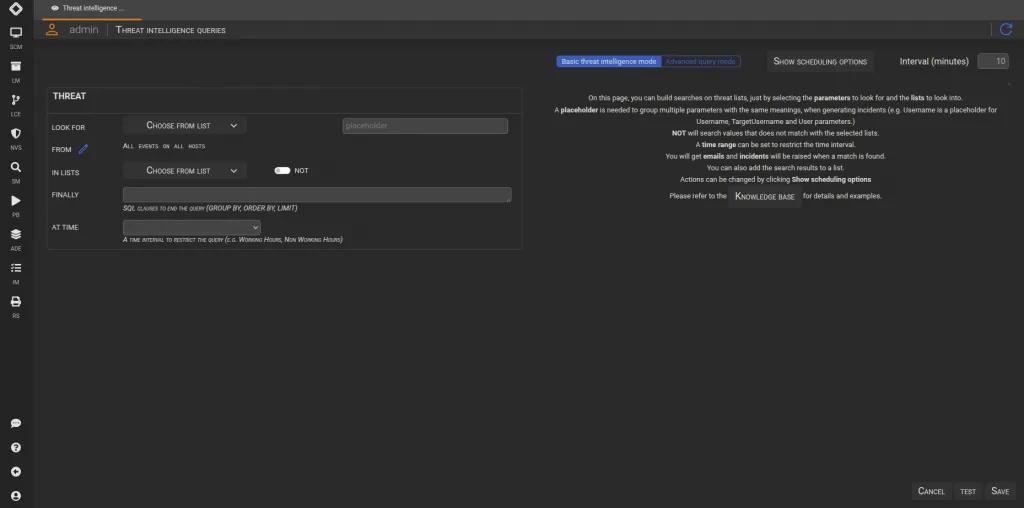
Configure threat
Define Subject and condition.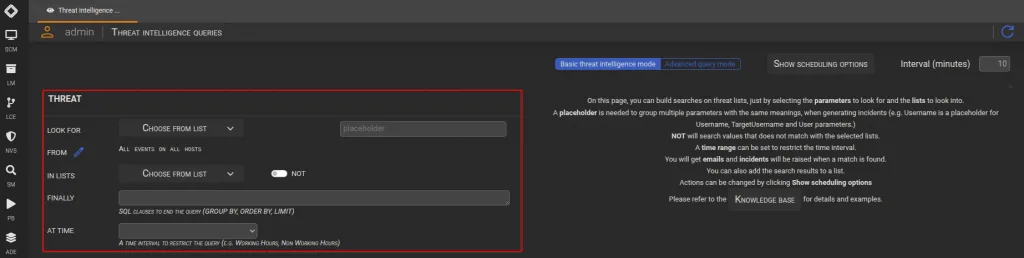
LOOK FOR: Allows you to select one or more parameters on which to perform the TIQ.
FROM: Allows you to select Classes, Events, Assets, Hosts, Categories, or Subfamilies to search within.
IN LISTS: Allows you to specify one or more lists for the TIQ search you are creating.
FINALLY: Allows you to apply a specific filter to manage the final results displayed.
AT TIME: Allows you to specify a time range, ensuring the TIQ is triggered only if the filter finds results within the specified interval.
Once you have configured the THREAT section, you can use the TEST button to see if the created TIQ provides the desired result.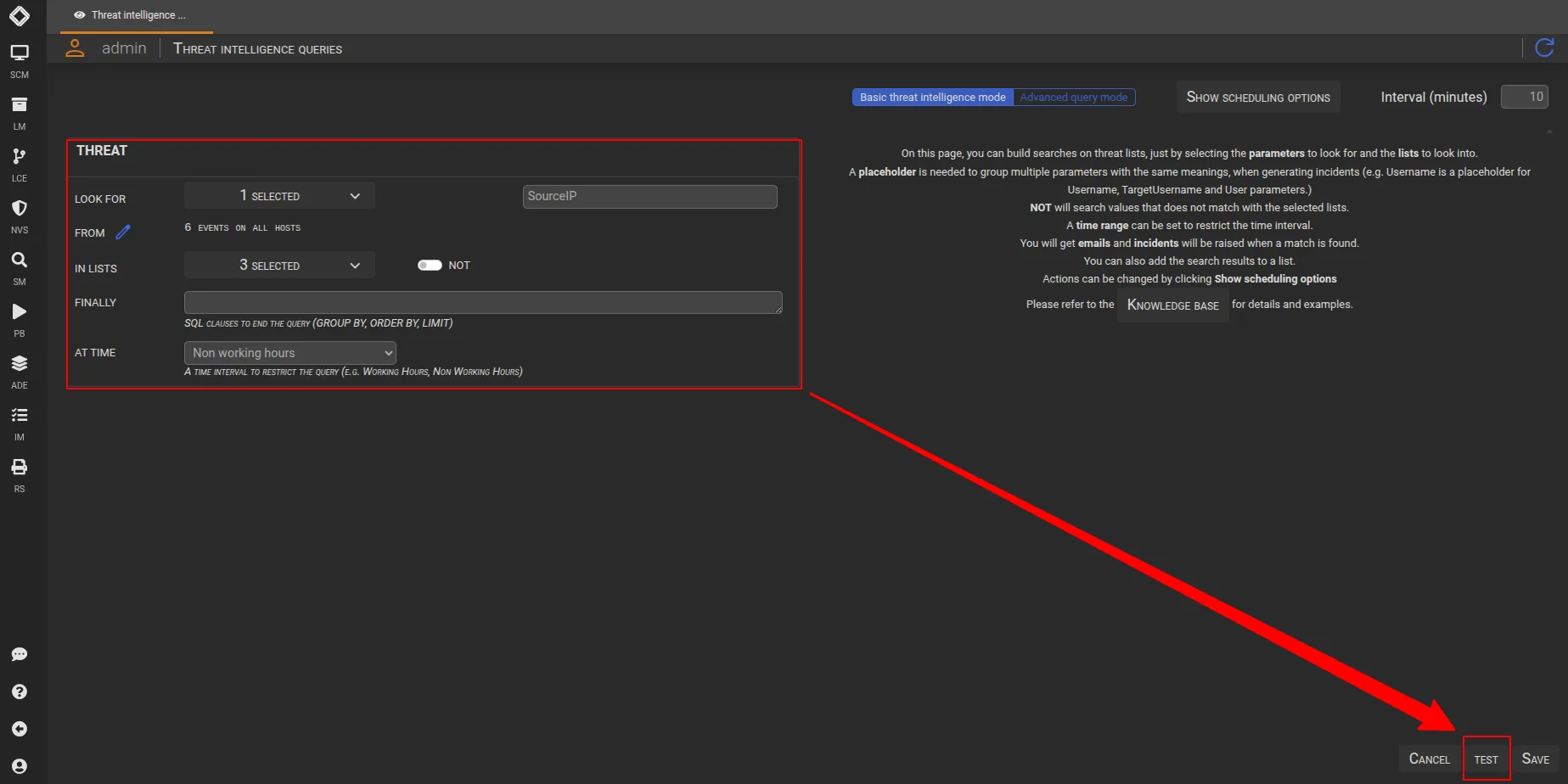
Configure Scheduling Options
By default, Threat Intelligence Queries are scheduled and send an email and generate a new event every time they found any result.
However, you are free to enable and use the Action that best suits your needs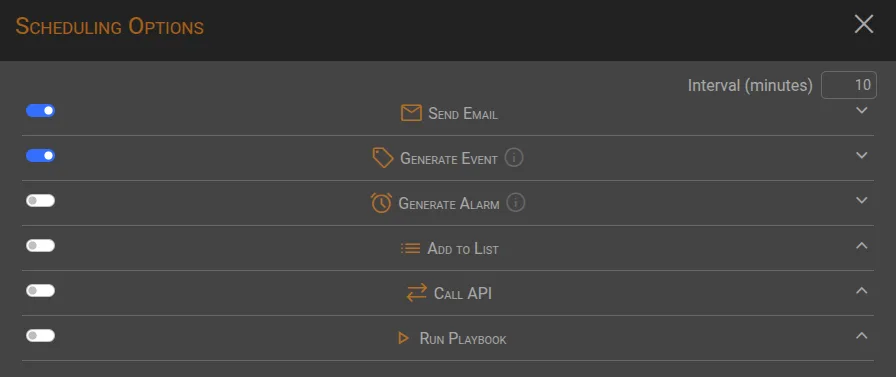
Configure Interval time and Active scheduling
- 🕑 Interval: monitor window where the query looking for (5/10 minutes in the example).
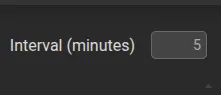
- 📅 Active Scheduling: Query scheduled will run every minute

A timeline summary of the two options combined: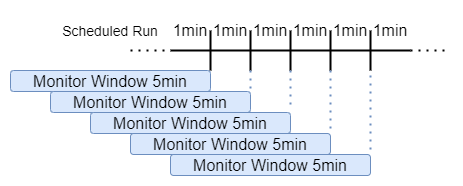
Save changes
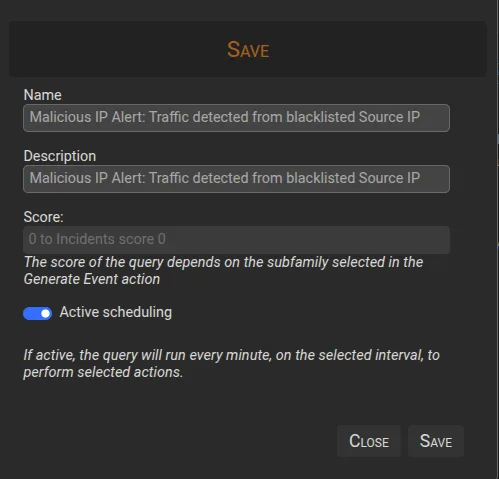
Once you have configured the TIQ and performed tests to confirm the desired outcome, save the created TIQ by clicking the SAVE button, assigning a Name and Description, and enabling the ‘Active scheduling‘ option to trigger the configured actions.